


The Opus Clip alternative with the full editor on every plan.
| Feature | Auk Video | Opus Clip |
|---|---|---|
| Picks moments to clip | Auk Video: yes | Opus Clip: yes |
| Full editor on the free plan | Auk Video: yes | Paid plans only |
| Crop follows the speaker | Auk Video: yes | Opus Clip: yes |
| Animated captions | Auk Video: yes | Opus Clip: yes |
| Schedule posts on a calendar | Every plan | Pro plan only |
| Layouts for 3 and 4 people | Auk Video: yes | Opus Clip: yes |
| Intro and outro on every clip | Every plan | Pro plan and up |
| Facecam layout for streams | Auk Video: yes | Opus Clip: yes |
| Effects and transitions | Every plan | Pro plan only |
| Stock b-roll | Every plan | None on Free |
Compared on from each company's public pages; features and plans may change. Opus Clip is a trademark of its owner; Auk Video is not affiliated with it.
Why switch from Opus Clip to Auk Video
An editor anyone can use
Delete a word in the transcript and it leaves the video. Undo anything, and every change saves itself. No editing experience needed.
It knows who is talking
Auk Video finds every face in the shot and matches it to the voice, so the crop lands on the person speaking, moment by moment, and starts fresh at every cut.
The right layout for every shot
One speaker, two, a panel of four, slides or a stream with a facecam: Auk Video picks the layout shot by shot, and you can change any of them in a click.
Your week of posts on one calendar
Schedule clips to TikTok, Instagram Reels and YouTube Shorts and see every post on one calendar. Pick a free hour and fill it in seconds.
Your brand on every clip
Save your captions, fonts, colours, intro and outro as a template, and every clip from every video comes out looking like you.
Ready for every app's buttons
Safe zones show where TikTok, Reels and Shorts put their buttons, so you can keep captions and titles clear of them.
How to switch from Opus Clip in four steps
Create your Auk Video account
Go to www.auk.video and sign up with Google or email. You start with free credits, no card needed.
Bring the same video
Paste the link to your video on Home, or upload the file you gave Opus Clip.
Pick captions and press Make clips
Choose one of 12 caption styles or a saved template. Drag the Section handles to clip only part of the video.
Review, edit and post
Clips appear one by one and Auk Video emails you when they are done. Open any in the editor, then download the MP4 or schedule it to TikTok, Reels or Shorts.
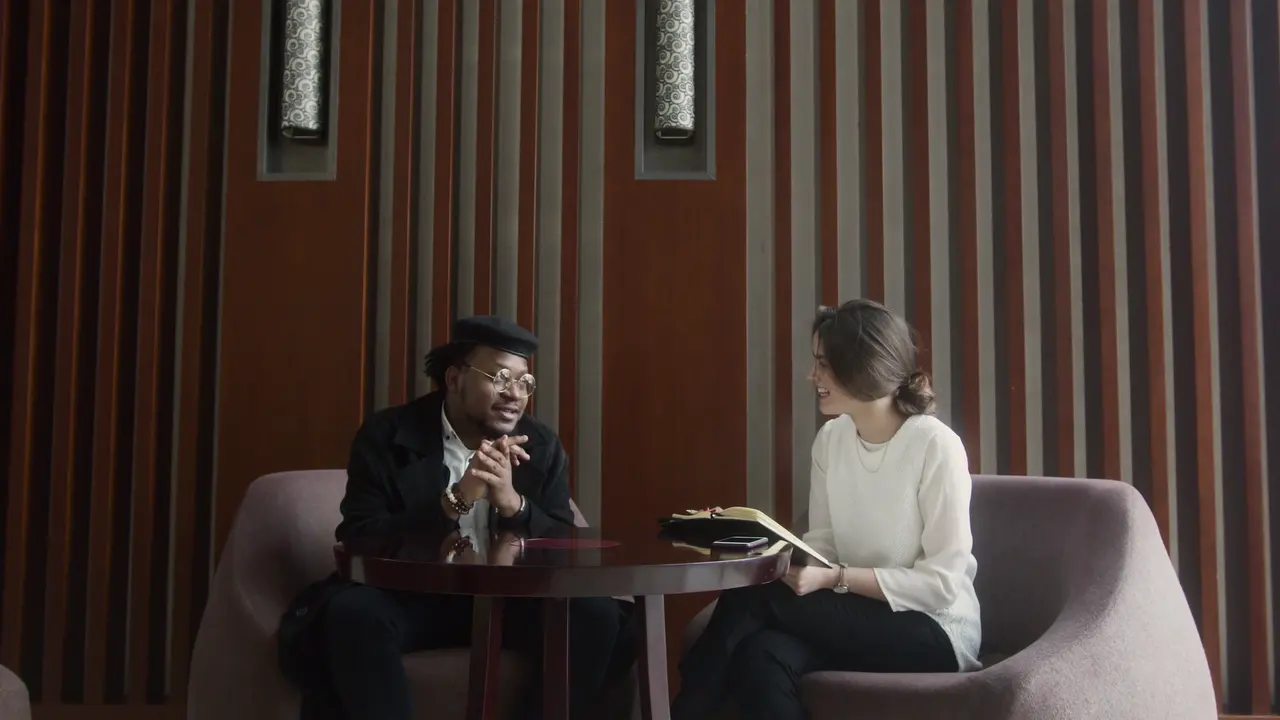
It stays on whoever is talking.
Auk Video follows the active speaker, so the vertical crop holds the person talking instead of the middle of the room. Move the framing yourself in the editor whenever you disagree with it.
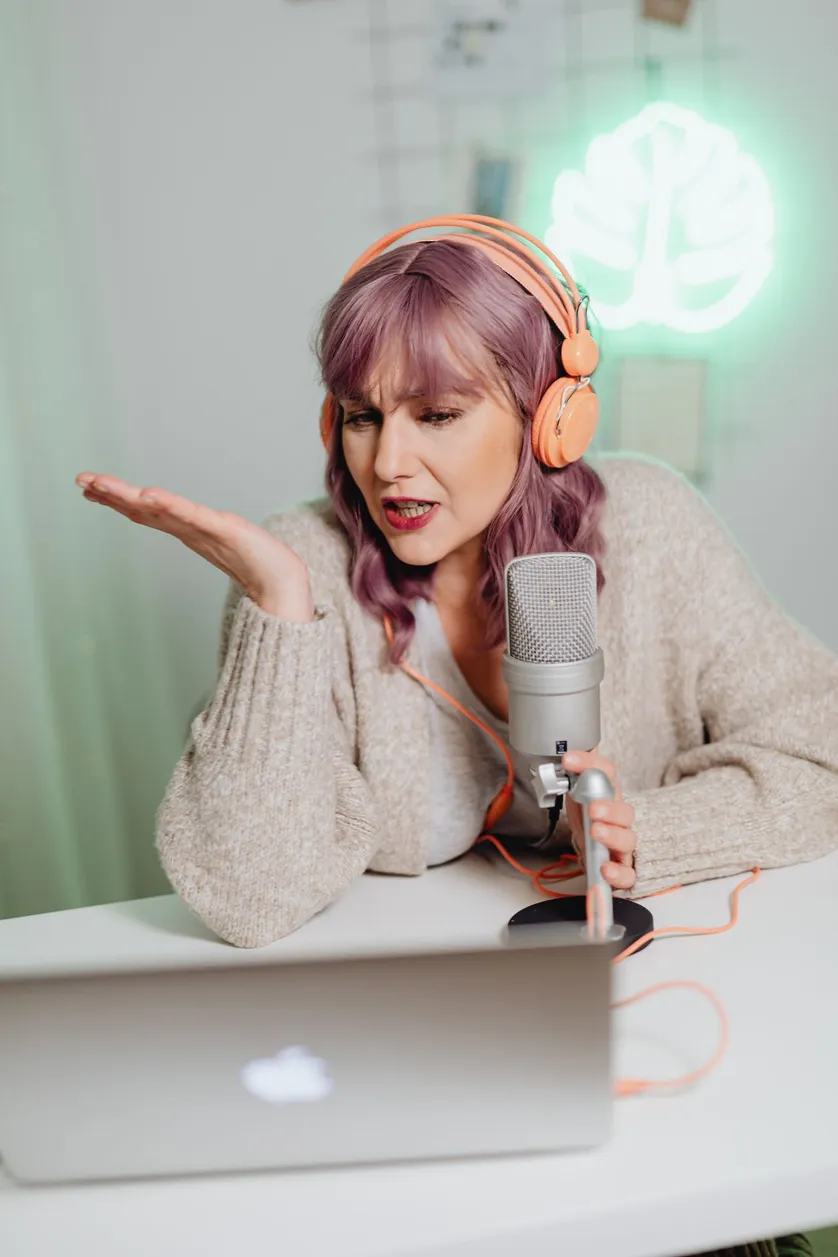
Built for the silent scroll.
Timed to each word
The transcript carries a timing per word, so the highlight moves with the speech.
Styles to pick from
Minimal, Karaoke Fill, Paper Card and the rest, chosen in the editor or set on a template.
Editable inline
Font, weight and emphasis colour, changed right on the clip.
Review, then ship
Reframe position, captions, style, all yours. Export in one click.
Set your look once. Every clip comes out in it.
Keep one per show. Changing it later never touches a clip you already have.
Pick a style, with your font and colours. The spoken word lights up.
Each clip gets its own title, in the look you pick, moving your way.
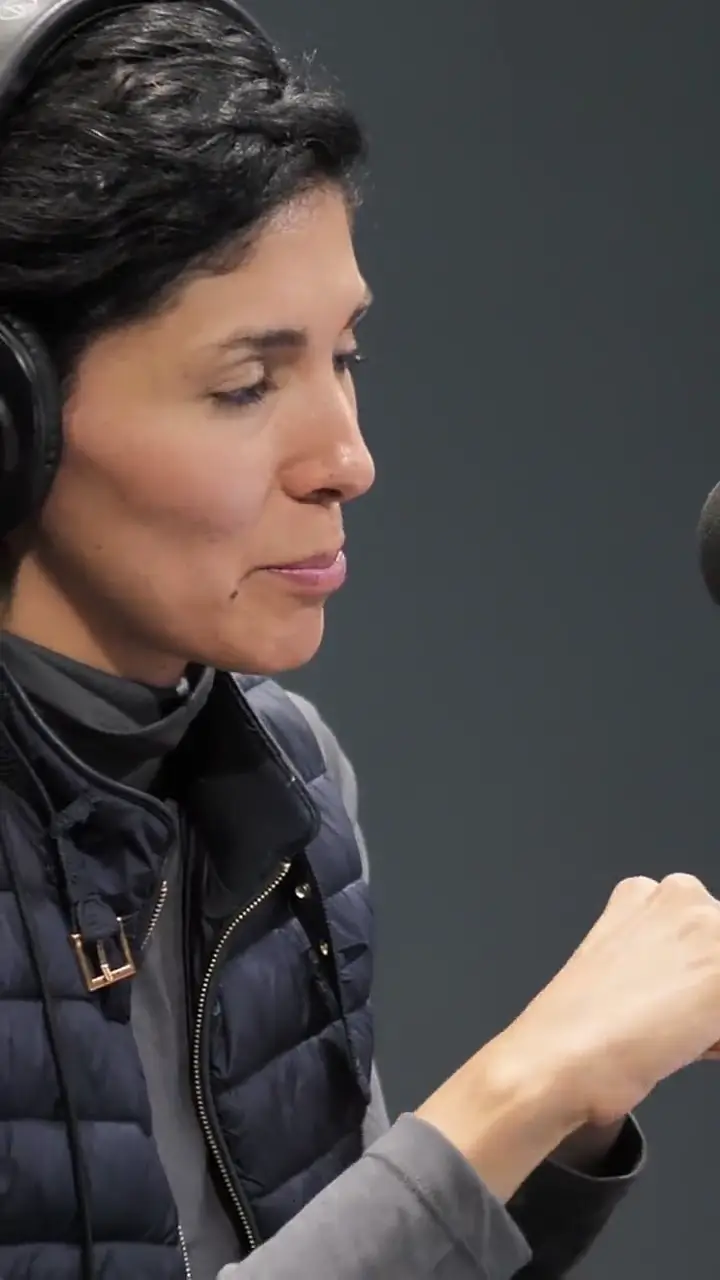
Calm, Lively or Punchy: from a fading title to a zoom at every cut.
Save each show's look as a template. Pick it for new clips, or apply it to one you already have.
Questions
Is Auk Video a good Opus Clip alternative?
Yes, especially if you want to edit your clips without upgrading first. Every Auk Video plan, including free, comes with the full editor, templates with your intro and outro, effects and the posting calendar. Auk Video matches every face to the voice, so the crop stays on whoever is talking, and changing a clip is as simple as deleting a word from its transcript.
Is there a free Opus Clip alternative?
Yes. Auk Video gives a new account free credits with no card needed, and the free plan has the full editor, templates with intro and outro, effects and the posting calendar. Exports carry an Auk Video watermark only on the free plan; on a paid plan they are clean, and you can render your earlier clips again without it, for free.
Is there an Opus Clip alternative without a watermark?
On Auk Video, only the free plan adds a watermark: on a paid plan exports are clean, and you can render your earlier clips again without it, for free. Before that, a new account's free credits let you make and download clips with a small Auk Video watermark, so you can judge the results first.
Does Auk Video have a free trial?
Instead of a timed trial, Auk Video gives a new account free credits once, with no card needed, enough to try it on your own video, or a Section of a long one, and download every clip. The full editor, templates, effects and the posting calendar are all included. Exports carry an Auk Video watermark only on the free plan; on a paid plan they are clean, and you can render your earlier clips again without it, for free.
Opus Clip vs Auk Video: which should I choose?
Choose Auk Video if you want to finish your clips yourself without paying for a higher plan first: the full editor, templates, effects and scheduling are on every Auk Video plan, including free. Both tools find moments, crop to the speaker and add animated captions.
Does Auk Video post to YouTube Shorts?
Yes. Connect your accounts and publish or schedule clips to YouTube Shorts, TikTok and Instagram Reels from Auk Video, on every plan, and see every post on one calendar. You can also download the MP4s and post them yourself.
What types of videos can I upload to Auk Video?
Paste the link to your video or upload the file: a podcast episode, a stream, a webinar, a talk or an interview. Auk Video finds the moments that stand on their own and turns each into a vertical clip for TikTok, Reels and Shorts.