


How do I fix the crop or framing of a clip?
Open the clip in the editor, move the playhead to the part that looks wrong and click Reframe in the bar above the video. Drag the box onto the person you want, or pick a different layout, then click Apply.
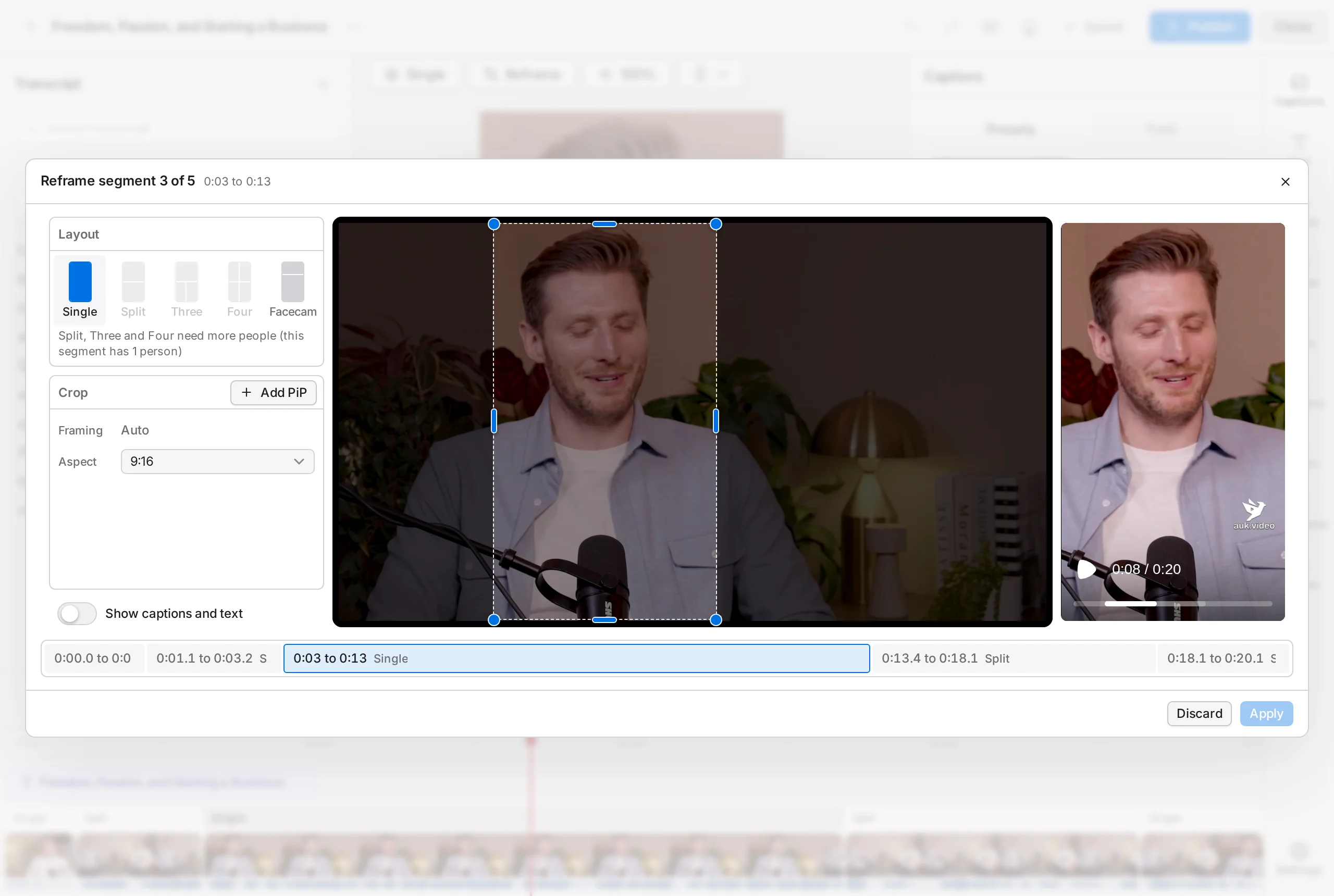
Footage: The B2B Marketing Strategy That Grew His Agency to $5M ARR by Success Clues Podcast, CC BY 4.0, cropped and captioned.
Why does the crop change part way through a clip?
Each clip is made of segments, shown as labelled chips (Single, Fit, Split and so on) on the timeline, and each segment has its own layout and framing. A fix applies to the segment under the playhead. See How reframe works.
How do I change the layout of a segment?
Move the playhead into the segment, click the layout button in the bar above the video (it shows the current layout, such as Single, with Layout: in front when the window is wide) and pick a layout.
The same shapes are under Layout in the Reframe window. A layout that needs more people than Auk found in the segment is greyed out, with the reason underneath. Swap, where shown, flips the two boxes.
How do I move the crop onto the right person?
- Move the playhead into the segment and click Reframe.
- The middle of the window shows the wide original frame with a box for each part of the vertical frame. Drag a box to move it, or a corner to resize it. Arrow keys move a selected box; hold Shift for bigger steps.
- The vertical result is on the right. Captions and text are hidden there; turn on Show captions and text to see them.
- Click Apply.
A box marked Auto (dashed outline) follows the speaker. Once you drag it, it becomes a Fixed crop (solid outline) that stays where you put it for the whole segment. Back to auto hands it back to Auk.
How do I choose who appears in each box?
In a layout with several boxes, click a box under Boxes on the left of the Reframe window. Choose someone from the Source menu (Person 1, Person 2 and so on, or two people together under Together, such as Person 1 and Person 2), and under Shows pick Crop to frame that person or Whole frame to show the entire picture in that box.
Can I show a video or an image in a box?
Yes. Any box can show b-roll instead of a person: a Single, a box of a Split, a layout of three or four, Facecam or a picture-in-picture box.
- Click the box on the video. A bar of icons appears on its top edge (under a picture-in-picture box): Reframe opens Reframe on that box, and Video or image puts a video or image in it. Click Video or image. (A double click on the box opens Reframe straight away.)
- Pick Videos or Images, then a video or image that is already On the timeline, one from Browse (Pexels), or one from Your uploads, where you can also upload a new one.
- Adjust opens on what you picked, laid out like Reframe: the whole picture with the box's frame on it, and the vertical result on the right. Drag the frame to move it and drag a corner to crop in closer (or use Zoom), or pick Whole item to show the whole picture with a blurred copy behind it.
- A video starts Muted, so the clip's own sound carries on. Pick On to hear it.
- Click Done.
On a box that already shows a video or image, its bar offers Adjust, Replace and Remove, which puts a person back in the box, and a double click opens Adjust. Remove media at the bottom of Adjust does the same as Remove.
The Layout menu above the video has a row for each box: point at it to choose a person, two people together, or a video or image already on the timeline, or pick Choose media… or Adjust…. In the Reframe window the box's Media row offers Video or image, or Adjust and Replace; nothing there is saved until you click Apply.
A video or image you pick from the library is added to the timeline over that segment. The box plays the item as it sits on the timeline, so trimming it or changing its speed changes what the box shows. Where the item is not playing, the box shows the background colour in the export. Click the box to select the item and edit it in its panel. Removing the media from its last box removes it from the timeline too; Undo brings it back.
If you split the item, both pieces stay in the box. Deleting one piece leaves the other in place. If you delete its last piece, the layout goes back to Single, and a picture-in-picture box that held it is removed.
How do I show the whole frame instead of a crop?
For a one-box segment, use the Aspect menu under Crop:
- The first option (the source's shape, such as 16:9, or Original) shows the whole wide frame with bands above and below. The segment becomes Fit.
- 9:16 fills the vertical frame.
- 4:5, 1:1, 9:8 and 4:3 show a wider slice than 9:16, with smaller bands.
- Custom lets you drag the box to any shape.
In a Fit segment, drag the picture up or down in the preview on the right, and pick Mirror or Color under Band for what fills the space around it.
How do I add a picture-in-picture box?
Click Add PiP next to Boxes (or Crop), aim it on the wide frame like any other box, and pick its Aspect (9:16, 1:1 or 4:5) and Shape (square or circle). To remove it, click the bin icon on its row in Boxes, or select the row and press Delete.
Can I fix several segments at once?
Yes. The strip at the bottom of the Reframe window lists every segment. Click one, or press [ and ], to move between them; hovering a segment you changed says (edited). Apply (or Ctrl+Enter, Cmd+Enter on a Mac) saves them all. Discard throws away everything you changed in the window.
How do I undo my framing changes?
- Back to auto, next to Framing, returns one box to automatic framing (Back to whole frame on a box that showed the whole picture).
- Discard, before you apply, throws away every change made in the window.
- After you apply, Undo in the editor's top bar takes the whole Reframe change back.
Do I need to export again?
Yes. Framing changes reach your video file the next time you export: see Exporting a clip.
Why is the Reframe button greyed out?
The segment under the playhead has nothing to reframe (hovering it shows This segment cannot be reframed). Move the playhead to another segment.
Related
- How does Auk turn a horizontal video into a vertical clip?Auk crops each clip to 9:16 and follows whoever is talking. For several people, a screen with a webcam, or nobody in frame, it switches layout.
- How do I watch, favorite and download my clips?Your clips appear on the project page. Click one to play it, add it to favorites, open it in the editor, or download the MP4.
- How do I export and download a clip?Open the clip and press Download. Auk renders a vertical 1080 by 1920 MP4 with your captions, for free.