


How do I change the caption style on my clips?
Pick a caption style on the Captions tab when you start a project, change it for one clip in the editor's Captions panel, or save it in a template to use on every project. A style sets the font, the colours and how the spoken word stands out; your words and their timing stay the same when you switch.
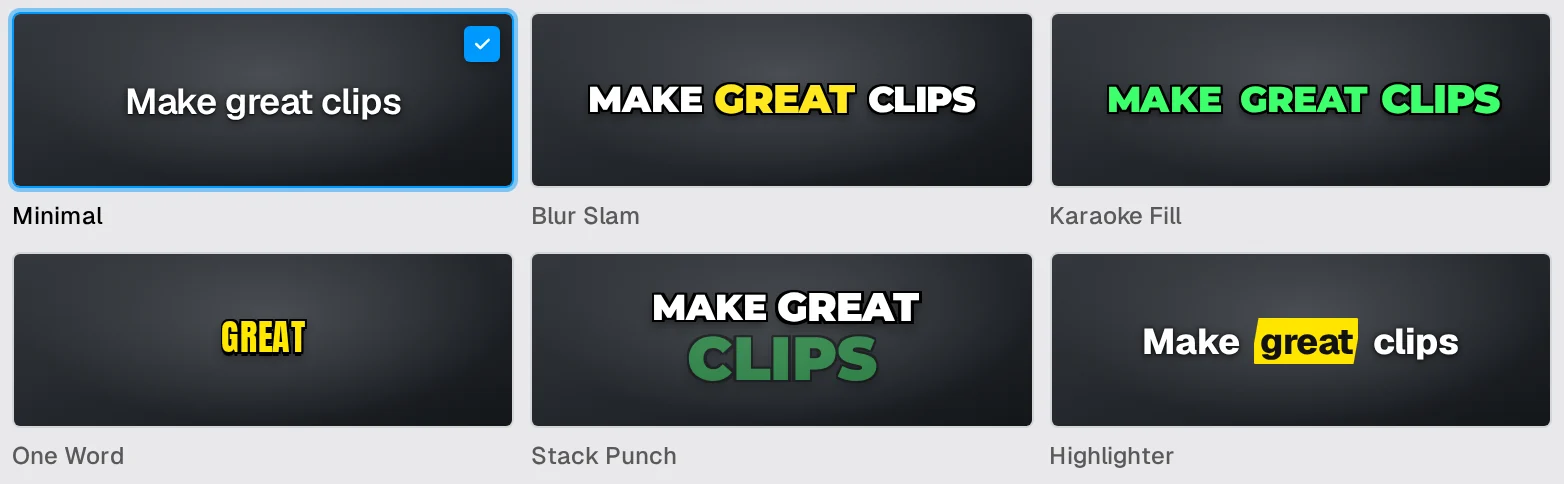
Which caption styles are there?
In the order the app shows them, with the description you see when you hover a style:
| Style | Description |
|---|---|
| Minimal | Plain white subtitles, no highlight |
| Blur Slam | Podcast clips that hook |
| Karaoke Fill | Podcasts & viral clips |
| One Word | Hooks & fast pacing |
| Stack Punch | Punchlines & motivation |
| Highlighter | Education, tips & study |
| Classic Red | Familiar active-word box |
| Sticker Tilt | Beauty, fashion & trends |
| Reveal | Storytelling & retention |
| Candy Pill | Lifestyle, beauty & creators |
| Neon | Games, tech & late night |
| Paper Card | Tutorials & key points |
Minimal is the default.
How do I choose a style before Auk makes the clips?
- Paste a video link or upload a file.
- In the window that opens, open the Captions tab.
- Click a style. Use the arrows next to the page count to see the rest.
- Click Make clips.
Every clip in the project starts with that style. A template picked on the Template tab selects its own caption style; picking a different style afterwards changes only the captions.
How do I change the style of one clip?
- Open the clip in the editor.
- Click Captions in the tool column on the right edge.
- On the Presets tab, click a style.
The change applies to that clip only, and keeps the clip's caption size, position and words per group.
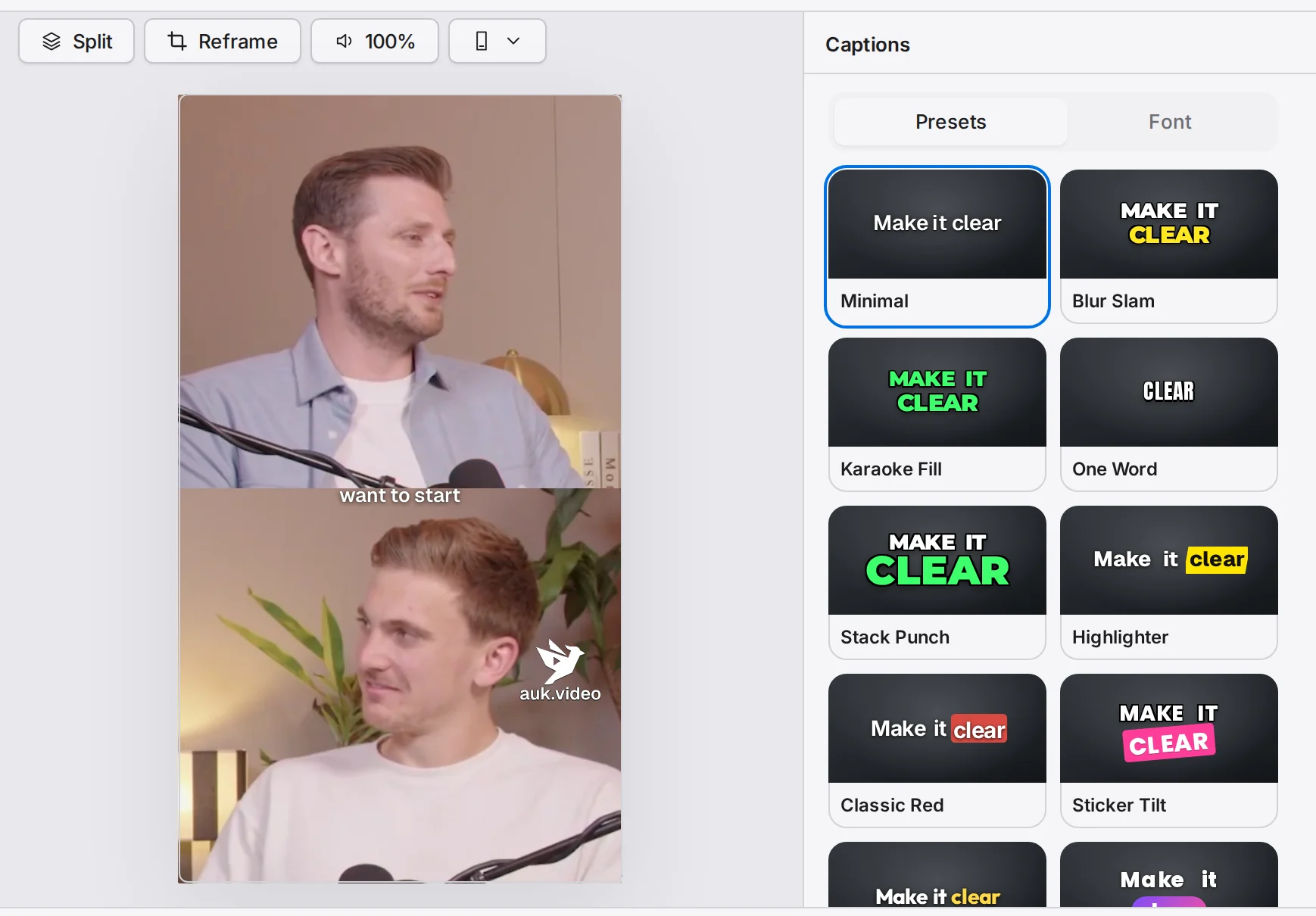
Footage: The B2B Marketing Strategy That Grew His Agency to $5M ARR by Success Clues Podcast, CC BY 4.0, cropped and captioned.
Can I adjust a style after picking it?
Yes, on the Font tab of the editor's Captions panel:
- Font: the typeface.
- Text case: Aa as written in the transcript, AA all capitals, aa all small letters. The transcript keeps its own spelling.
- Position: how high or low the captions sit: Top, Upper, Middle, Lower or Bottom, or Auto, which places them by the layout, for example on the line between the two people of a Split.
- Size: the text size.
- Words per group: how many words show at once.
- Colors: Text, Active (the word being spoken), Word box and Caption box.
How do I use the same style on every project?
- Go to Templates. Open the menu at the top, which shows the current template's name, and pick a template, or choose New template.
- Under Look, open Captions, turn on the switch next to its name, and pick a style.
- Click Create for a new template, or Save.
- When you make clips, pick that template on the Template tab.
Editing or deleting a template does not change clips you have already made.
Does changing the style change my exported video?
Only after you export again: see Exporting a clip.
Related
- How do I fix a wrong word in my captions?Correct a misheard word, cut words or fillers out of the video, change the speed or trim the clip from the Transcript panel in the Auk editor.
- How do I export and download a clip?Open the clip and press Download. Auk renders a vertical 1080 by 1920 MP4 with your captions, for free.
- How do I make my first clips with Auk?Paste a YouTube link or upload a video file, pick a caption style and the part to use, and press Make clips. Which videos work and what it costs.