


How do I fix a wrong word in my captions?
You fix captions in the Transcript panel on the left of the editor. Double-click a word to retype it, or click it once for a toolbar: Edit, Split clip here and Delete.
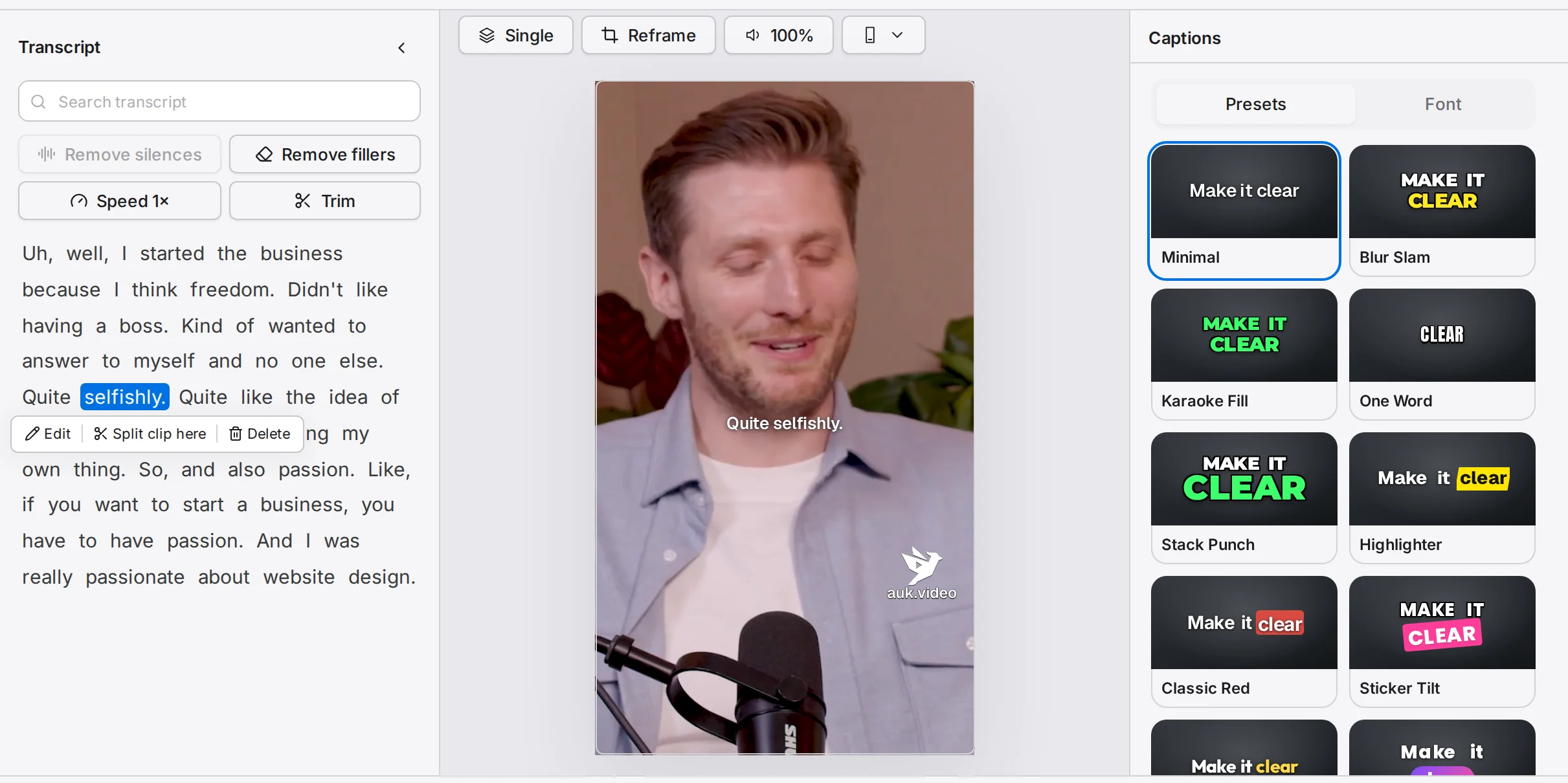
Footage: The B2B Marketing Strategy That Grew His Agency to $5M ARR by Success Clues Podcast, CC BY 4.0, cropped and captioned.
How do I correct a misheard word?
- Open the clip in the editor.
- Double-click the wrong word in the Transcript panel. To find it, type it in Search transcript at the top of the panel.
- Type the correct word and press Enter. Esc cancels.
The word keeps its timing and the video is not touched. Clearing the box does not delete the word: use Delete for that.
How do I cut a word out of the video?
Click the word, then Delete. The word is cut from the video: its sound and picture go, and the next word starts right where it was. The captions skip it, and the transcript shows it struck through.
To bring it back, click the struck-through word and choose Add word back. The word stays struck through after you leave the editor, so you can add it back later. Undo also brings it back.
To fix a misheard word without cutting the video, retype it instead (above).
How do I remove um, uh and other fillers?
Click Remove fillers at the top of the Transcript panel. Auk found the fillers when it made the clip, so they go at once: um, uh and similar words, plus words like "like", "so" or "you know" and a word said twice in a row, where Auk judged them to be a filler. Each cut starts and stops on the quiet around the word, so the words either side keep their sound and a short breath stays between them.
Click the button again, now Restore fillers, to bring them all back. To bring back a single one, click it in the transcript (it shows struck through) and choose Add word back. One Undo also takes the whole removal back.
Remove silences, next to it, works the same way for long pauses: one click shortens them all, the next click brings them back, and a pause chip in the transcript brings back one.
A clip made before Auk started finding fillers and pauses has none, and the buttons stay off: make the clip again to get them.
How do I split the clip at a word?
Click the word, then Split clip here. The video is cut on the timeline just before that word, so the parts on either side can be moved or deleted on their own.
To change how many words show at once across the whole clip, use Words per group in the Captions panel: see Caption styles.
Do my caption edits save?
Yes, automatically; the button in the top bar reads Saved when they are stored. They reach your video file the next time you export: see Exporting a clip.
How do I make the clip faster or slower?
Click Speed at the top of the Transcript panel (it shows the current speed, such as Speed 1×) and pick from 0.5× to 2×. The whole clip changes speed, and the captions move with the words. Hover the button to see how long the clip runs at that speed.
How do I change where the clip starts or ends?
- Click Trim at the top of the Transcript panel.
- Drag the handles to choose where the clip starts and ends. The dimmed footage and words are what Auk kept around the clip, so you can bring back a little of what was said just before or after it.
- Press Apply. Reset goes back to where the clip was, and Cancel closes without changing it.
Why is a word missing from the transcript?
The transcript lists only the words spoken inside the clip as it is cut now, not the footage before or after it. To bring in a little of the footage just before or after the clip, use Trim (above).
Related
- How do I change the caption style on my clips?Pick a caption style before Auk makes your clips, change it for one clip in the editor, or save it in a template for every project.
- How do I export and download a clip?Open the clip and press Download. Auk renders a vertical 1080 by 1920 MP4 with your captions, for free.
- How do I watch, favorite and download my clips?Your clips appear on the project page. Click one to play it, add it to favorites, open it in the editor, or download the MP4.