


How do I post my clips to TikTok, YouTube Shorts and Instagram Reels?
Press Publish on a clip, pick the channels it goes to, write the title, and press Post now or Schedule. Auk posts the clip to TikTok, YouTube Shorts or Instagram Reels for you, and publishing never costs credits.
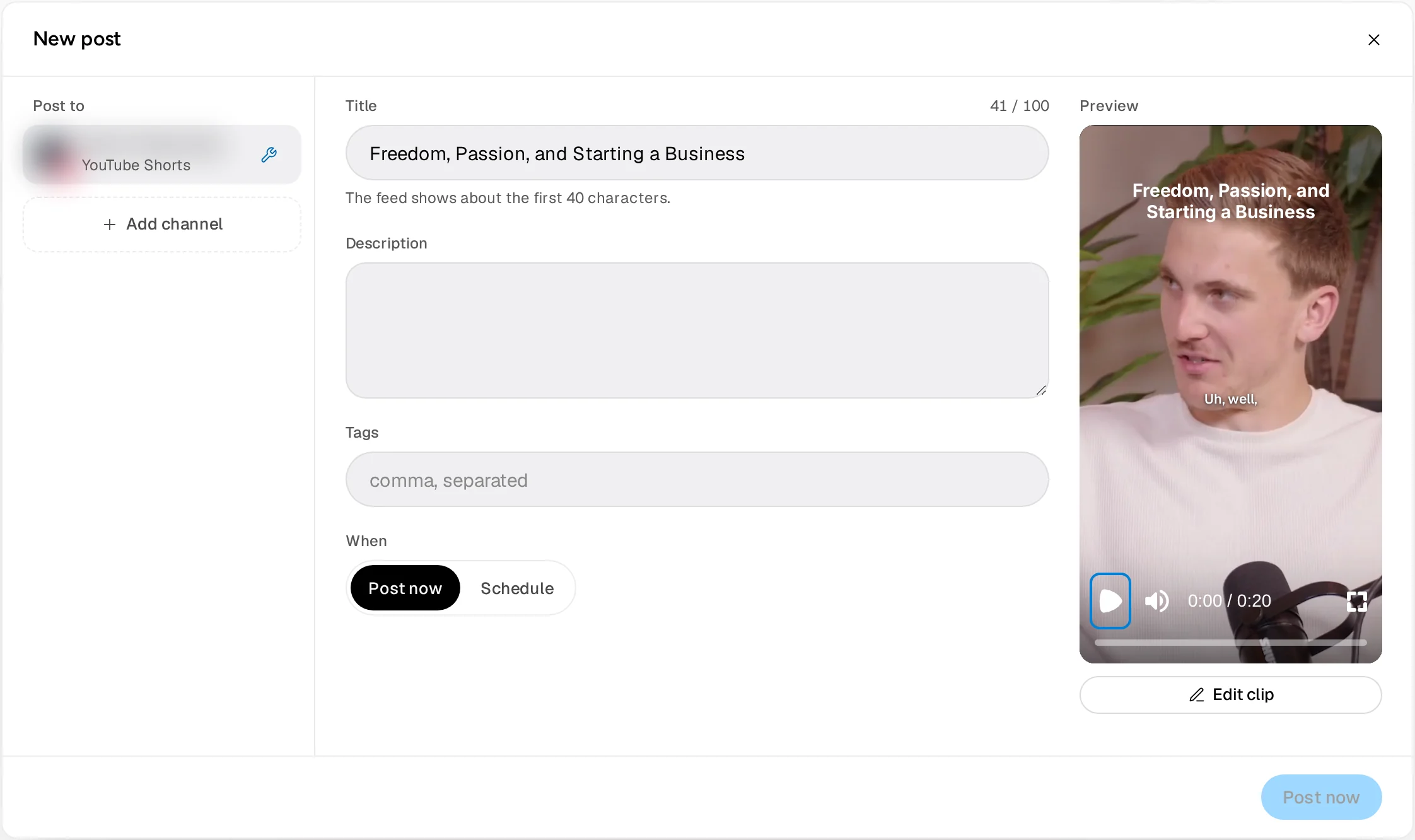
Footage: The B2B Marketing Strategy That Grew His Agency to $5M ARR by Success Clues Podcast, CC BY 4.0, cropped and captioned.
How do I connect a channel?
- Open the account menu at the bottom of the sidebar and click Profile.
- Under Channels, press Connect next to TikTok, YouTube Shorts or Instagram Reels.
- Sign in on the platform's page and allow Auk to post. You come back to Auk, which says Channel connected.
To add a second account on the same platform, press Add another next to it.
You can also connect from the post window: press Add channel under Post to and pick the platform. You sign in on the platform's page and come back to the same clip, but anything you typed in the post is not kept.
For YouTube, leave every permission ticked on Google's page. If the upload permission is unticked, Auk says YouTube did not grant permission to upload and you need to connect again.
Instagram only lets apps post to professional accounts. A personal account connects, but its block in the post window asks you to switch it to Creator or Business in Instagram's settings.
How do I reconnect or disconnect a channel?
In Profile, under Channels, open the options button next to the channel:
- Reconnect signs you in to the platform again.
- Disconnect… asks you to confirm, then removes the channel from Auk. You can connect it again later.
If a channel's sign-in stops working, the post window shows a wrench button next to that channel. Click it to sign in again.
How do I publish a clip now?
- Open the clip from its project and press Publish. In the editor, press Publish at the top: your latest changes are saved first.
- The Publishing page opens with the clip in the New post window. Under Post to, click each channel the clip goes to. The first channel starts picked.
- Check the Title, and add a Description and Tags (comma separated) if you want them.
- Fill in the options under each channel's name (see the platform sections below).
- Leave When on Post now and press Post now.
You don't need to wait for the clip to render. If its video file is not ready yet, the confirmation says the post goes out as soon as the video is ready, and Auk sends it then.
When nothing can be posted yet, the line beside the button says what is missing, such as Add a title or Pick a channel.
How do I schedule a post?
- Open the clip in the New post window, as above.
- Under When, pick Schedule.
- Set the date and time. The time is in your own time zone; click the offset at the end of the field to pick another zone.
- Press Schedule.
If you already have posts that day, the line beside the button lists their times.
You can also start from the calendar: press New post at the top of the Publishing page, the + on a day, or a free hour in the week view. Pick a project, then a clip, and the New post window opens set to that time.
Where do I see my scheduled and published posts?
On the Publishing page, in the sidebar. The switch at the top has three views:
- Month: a calendar of the month. Beside it, the day you click and the six days after it list every post with its time.
- Week: an hour grid of the week, with each post at its time.
- List: Upcoming posts by day, then Posted with each post's views and likes when the platform reports them. Posts that failed are at the top under Needs attention.
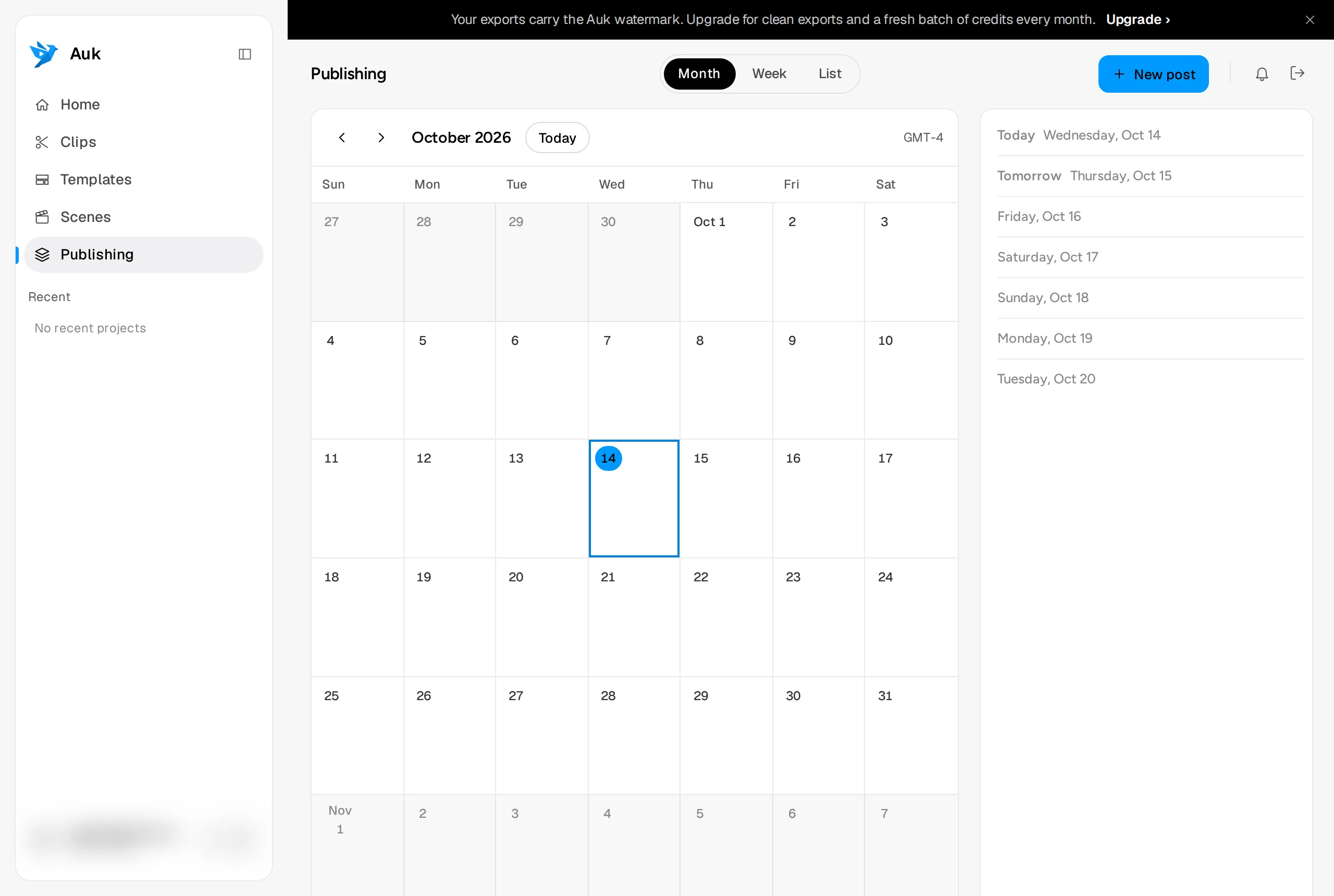
On a phone, the Publishing page shows the List view only.
A post that has gone out has a View post link that opens it on the platform. Right-click it in the calendar for Copy link.
How do I change or cancel a scheduled post?
Click the post in the calendar or the list.
- To move it, change Publish at and press Save time. In the calendar you can also drag it to another day (it keeps its time) or, in the week view, to another hour.
- To cancel it, press Delete post, then Delete post again to confirm. The post is not published, and the clip stays in your library.
You can change the time, not the text. To change the title or options, delete the scheduled post and make a new one.
Once a post's time comes, it can no longer be moved or deleted from Auk. Auk does not delete posts that have gone out: remove those on the platform itself.
What if a post fails?
A failed post is marked Failed or Rejected, with the reason. It shows under Needs attention at the top of the list, and on its day in the calendar (or under Needs attention in the month view's day list, once that day is behind the one you clicked). Click it in the calendar:
- Try again: the clip's video could not be prepared. Auk prepares it again and books the same post.
- Rejected: the platform refused the video. Press Open in editor to fix the clip, then Post again.
- Post again: for any other failure, this opens the New post window on the same clip.
If you post to several channels at once and one of them fails, the others still go out. The New post window stays open on the channel that failed, with the reason under it.
YouTube limits how many videos Auk can upload in a day, across all Auk accounts. If the limit is reached, Auk says daily publishing limit reached; try again later.
Who can see my post?
Today, posts from Auk to YouTube and TikTok stay private until each platform approves Auk:
- YouTube Shorts: the post is private on your channel. You can make it public in YouTube Studio.
- TikTok: only you can see the post on TikTok.
- Instagram Reels: the Reel posts publicly. Instagram has no private posts.
The post window says this under each channel's name. Once a platform approves Auk, a Who can see it menu appears there instead.
What options does each platform have?
Title, Description and Tags are shared by every channel you pick. The counter beside Title shows the limit of the strictest channel picked. To write different text for one channel, press Customize text in its block; Use shared text goes back.
For TikTok and Instagram you can pick the Cover frame with the slider; Reset clears your pick. YouTube picks its own cover.
Each platform also has a maximum clip length. If a clip is too long, the line beside the button says so and names the limit.
YouTube Shorts
- Category: where YouTube files the video.
- Made for kids: tick it if the video is made for children.
- Altered or synthetic content: tick it for realistic footage that was changed or generated, as YouTube defines it.
TikTok
- The block names the TikTok account the post goes out as (Posting as your nickname).
- Allow comments, Allow Duet and Allow Stitch start off: tick the ones you want. One you turned off in your TikTok settings is greyed out.
- AI-generated content: tick it to label the video.
- Disclose video content: turn it on if the video promotes goods or services, then pick Your brand (labelled Promotional content) or Branded content (labelled Paid partnership). Branded content is not available while only you can see the post, which is the case today.
- By posting to TikTok, you agree to TikTok's Music Usage Confirmation, and to its Branded Content Policy for branded content.
After a TikTok post goes out, it can take a few minutes to show on your profile.
Instagram Reels
- Also show in the main feed: on by default.
- Collaborators: up to 3 Instagram usernames, comma separated. Each one gets an invite in Instagram to co-author the Reel.
Does publishing cost credits?
No. Credits are only used when Auk makes clips from a source video. Publishing, scheduling, posting again and exporting are free. See How credits work.
Related
- How do I export and download a clip?Open the clip and press Download. Auk renders a vertical 1080 by 1920 MP4 with your captions, for free.
- How do credits work in Auk?One credit is one minute of the video or section you pick, charged once. Clips, edits, downloads and publishing are free; failed projects are refunded.
- What size and length should a TikTok video be?TikTok's own limits for video length, file size, format and resolution, from its help center and developer docs, and how Auk's export fits them.
- What size and length should a YouTube Short be?YouTube's own rules for Shorts length, aspect ratio and resolution, plus its recommended upload settings, and how Auk's export fits them.
- What size and length should an Instagram Reel be?Instagram's own specs for Reels aspect ratio, resolution, frame rate, length and file size, from its help center and Meta's developer docs.