


How do I add b-roll and music to a clip?
Open the clip in the editor, move the playhead to where the b-roll should start, click Videos or Images in the tool column and pick something from Browse (Pexels) or Your uploads. For music or a sound effect, click Audio, upload the file and click it to add it at the playhead.
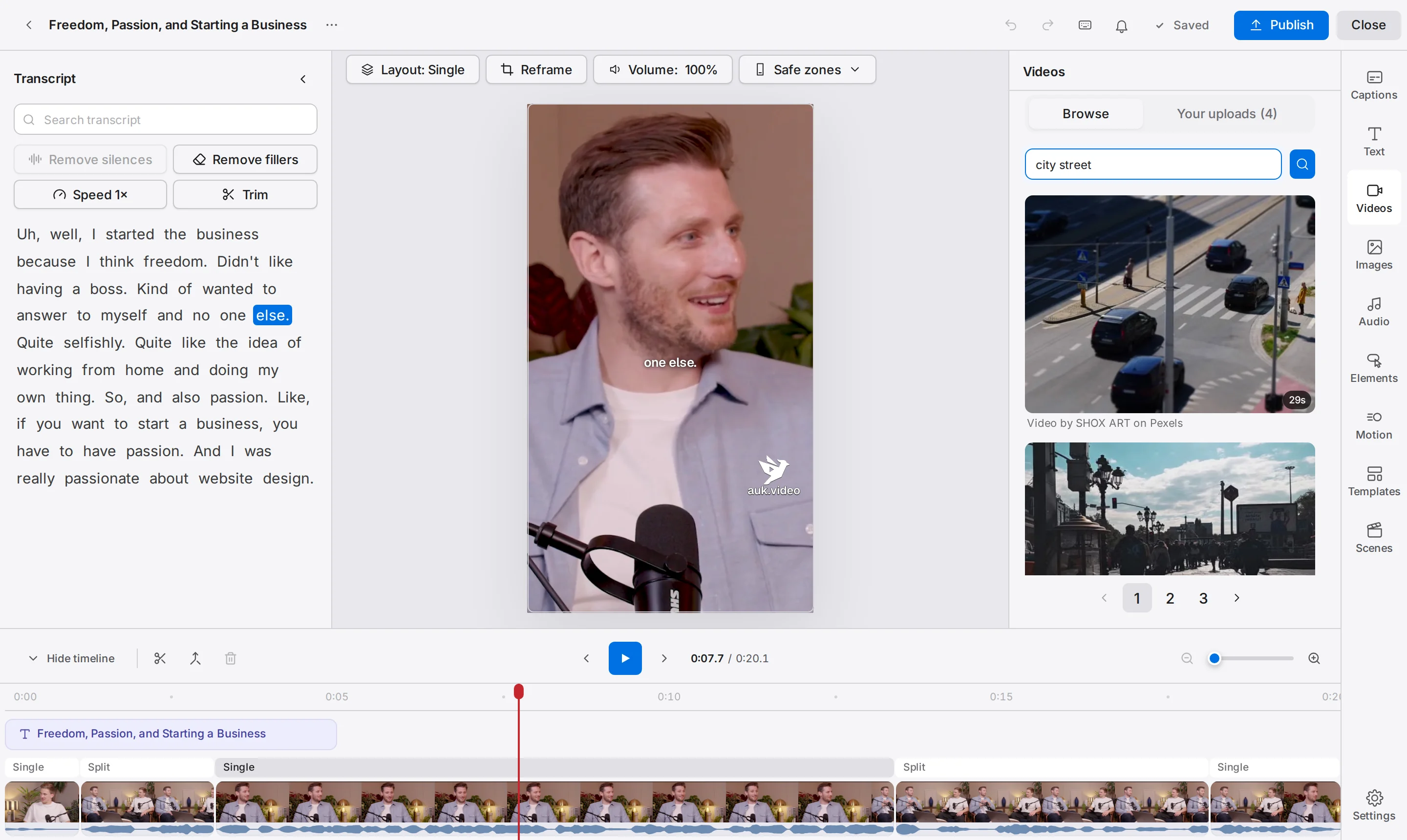
Footage: The B2B Marketing Strategy That Grew His Agency to $5M ARR by Success Clues Podcast, CC BY 4.0, cropped and captioned.
How do I add a video or image from the library?
- Move the playhead to where the b-roll should start. You can also right-click an empty part of the timeline and pick Add B-roll here, which moves the playhead there and opens Videos.
- Click Videos (or Images) in the tool column.
- On Browse, type what you want in the search box and press Enter or the magnifier button. Results come from Pexels, 20 to a page, with the page numbers underneath.
- Point at a video and click Add, or click Preview to watch it first and then Add. For an image, click the image itself.
The video lands at the playhead and is selected, so the panel switches to its controls. A pick from Browse is saved to Your uploads first, so it counts toward your storage. Each result shows who made it, under the tile.
To add something you uploaded before, open Your uploads and click its tile. On a computer you can also drag a tile from Your uploads onto the timeline.
While an added item is selected, its panel shows that item's controls. Click the back arrow at the top of the panel to return to Browse and Your uploads, or click Add another.
How do I upload my own file, and which files work?
- Open Videos, Images or Audio, and in Videos or Images switch to Your uploads.
- Click Upload and choose a file. A progress bar shows while it uploads.
- Click the new tile to add it to the clip.
| Kind | File types | Largest file |
|---|---|---|
| Video | MP4, WebM, MOV | 200 MB |
| Image | PNG, JPEG, WebP, GIF | 10 MB |
| Audio | MP3, WAV, M4A | 50 MB |
All your uploads together can use up to 1 GB. The bar under Upload shows how much you have used. When it is full, Upload is greyed out: point at a tile and click its bin icon to delete an upload that no clip uses any more.
Where does it go on the timeline, and how do I place and trim it?
Videos and images sit in the lanes above the main video; sounds sit in the lanes below it. A b-roll chip is filled with its picture; a sound shows its waveform and its file name.
- Move it by dragging the chip along its lane.
- Trim it by dragging its start or end edge.
- Split or Delete it as you would any other item: see How to use the editor.
A video from the library goes in 3 seconds long, or the whole video when it is shorter. Drag its end edge to play more of it, up to the length of the video. An image goes in at a fifth of the clip's length.
Titles and captions stay on top of b-roll. A video or image covers the speaker only while it plays; the clip's own sound carries on under it.
Follow the clip's cuts, under Playback in a video's controls, stretches the video over the whole clip at normal speed and keeps it in step with the clip's cuts.
How do I make it fill the frame, or show it as a smaller picture?
A video from Videos goes in filling the whole vertical frame with the centre of its picture. An image goes in at its own size, or scaled down to fit inside the frame.
To change the crop, size or position:
- Select the item on the timeline.
- For a video, open the Transform tab in its panel and click Reframe. For an image, click Reframe under Transform. Right-clicking the item and picking Crop opens the same window.
- In the middle is the whole picture with a box on the part that shows. Drag the box to show another part, or drag a corner to crop closer. The Aspect ratio menu sets the box's shape: Original shows the whole picture, 9:16 fills the vertical frame, and Custom lets you drag the box to any shape.
- On the right is the vertical result. Drag the picture to move it, or drag a corner to make it smaller.
- Click Apply.
You can also move and resize the selected item straight on the preview: drag it to move it, or drag a corner to resize it.
Under Effects (for a video) or Appearance (for an image) you can set Fit (Cover, Whole picture or Stretch), a filter, rounded corners and brightness, and the Animation section sets how it comes in and goes out.
To put a video or an image inside a box of a layout, such as one half of a Split, see Can I show a video or an image in a box?.
Does the b-roll's own sound play, and how do I mute it?
Yes. An added video plays its own sound at full volume, together with the clip's sound. To change that:
- Select the video and open the Playback tab in its panel.
- Click Mute to silence it (it then reads Unmute), or drag the Volume slider.
You can also select it and press M, or right-click it and pick Mute. Detach audio, in the same right-click menu, moves the video's sound onto its own audio item below the main video, so you can trim, move and fade the two apart.
Fade in / out on the same tab fades the video's sound, in seconds. It does not fade the picture: use Animation under Effects for that.
The clip's own sound has its own Volume in the bar above the preview: see How to use the editor.
How do I add music or a sound effect?
Audio uses your own files; there is no music library to search.
- Move the playhead to where the sound should start.
- Click Audio in the tool column.
- Click Upload and choose an MP3, WAV or M4A file, or skip this step if it is already in the list.
- Click the file's tile. The sound goes in the lanes below the main video, starting at the playhead, at its full length.
Click the sound on the timeline to open its controls at the bottom of the Audio panel. The play button next to its name lets you listen to the file on its own.
- Playback: Mute or the Volume slider, and Speed (from 0.25× to 4×).
- Fades: drag Fade in and Fade out. Each shows its length against the sound's length, and the two together never run longer than the sound.
To make the music quieter under the speaker, lower the sound's Volume; to change the speaker's level, use Volume above the preview.
How do I remove b-roll or music?
Select the item on the timeline and press Delete, click the bin button in the timeline toolbar, or right-click it and pick Delete. Undo brings it back.
Removing an item from the clip keeps the file in Your uploads, ready to use again. Changes reach your video file the next time you export: see Exporting a clip.
Related
- How do I use the Auk clip editor?A tour of the Auk editor, from the top bar, transcript, preview, tools, timeline, right-click menu, shortcuts, saving and the phone layout.
- How do I fix the crop or framing of a clip?Change a segment's layout, drag the crop onto the right person, put a person, a video or an image in each box, or show the whole frame, all in Reframe.
- How do I fix a wrong word in my captions?Correct a misheard word, cut words or fillers out of the video, change the speed or trim the clip from the Transcript panel in the Auk editor.
- How do I export and download a clip?Open the clip and press Download. Auk renders a vertical 1080 by 1920 MP4 with your captions, for free.