


How do I use the Auk clip editor?
The editor shows your clip in the middle, its transcript on the left, a column of tools on the right and the timeline along the bottom. Every change saves on its own, and you leave with Close or Publish at the top right.
To open it, click a clip and press Open in editor.
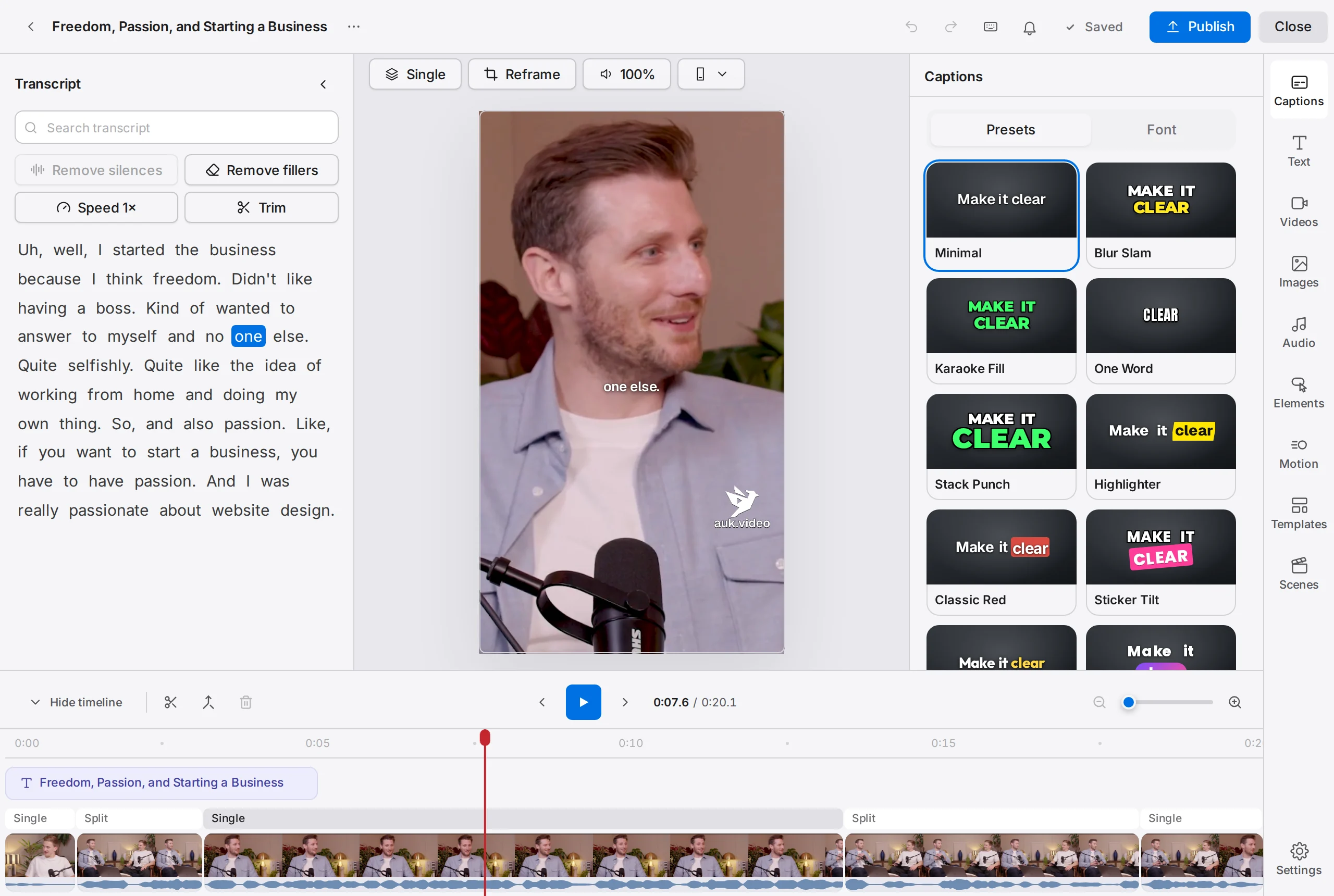
Footage: The B2B Marketing Strategy That Grew His Agency to $5M ARR by Success Clues Podcast, CC BY 4.0, cropped and captioned.
What is on the editor screen?
- Top bar: the back arrow, the clip's title and the ⋯ menu on the left; Undo, Redo, the keyboard button, notifications, the save status, Publish and Close on the right.
- Transcript, on the left: fix or cut words, remove fillers and silences, change the Speed or Trim the clip. See Editing captions.
- Preview, in the middle. The bar above it holds Layout and Reframe for the framing under the playhead (see Adjusting the crop), Volume for the clip's sound, and Safe zones, which draws the safe area of Instagram, TikTok or YouTube. In a narrow window these buttons drop their words and show the short form: the layout's name, Reframe, the volume and a phone icon.
- Tool column, on the right: click a tool to open its panel; click it again to close it.
- Timeline, at the bottom: play controls, the main video with its layout chips (Single, Split and so on), and lanes for what you add.
What does each tool do?
- Captions: caption style and words per group. See Caption styles.
- Text: Add text puts a title on the clip.
- Videos and Images: b-roll from Browse (Pexels) or Your uploads.
- Audio: upload and add music or sounds, with volume and fades.
- Elements: calls to action, stickers and shapes.
- Motion: camera moves on the main video, such as Zoom in or Shake, added at the playhead.
- Templates: apply one of your saved templates. Manage templates opens the Templates page in a new tab.
- Scenes: add a scene from your library As intro, As outro or At playhead.
- Settings, at the foot of the column: the background colour.
How do I select, move, split and delete on the timeline?
- Select: click an item; a title, image, sound, element or added video also opens its panel. Shift-click adds or removes items, and dragging across empty lanes selects several. Esc clears the selection.
- Move the playhead: click or drag along the ruler.
- Move an item by dragging it; trim it by dragging its start or end edge. Dragging a piece of the main video sideways changes the order of the pieces.
- Split: the scissors button or S cuts the selected items at the playhead, or the main video when nothing is selected. Shift-click the scissors to cut every track.
- Delete: the bin button or Delete. Deleting a piece of the main video closes the gap.
The button between the scissors and the bin merges the layout segment under the playhead with its neighbour.
What does right-click offer?
Right-click an item on the timeline or the preview for the actions that fit it, with shortcuts beside them: Cut, Copy, Paste, Duplicate, Split at playhead, Delete, Volume…, Speed…, Crop, Font, Animate… and more. A piece of the main video adds Reframe, Show in transcript, and Use as hook or Use as outro to copy or move that moment to the start or end.
On an empty part of the timeline you get Add text here, Add B-roll here, Add motion here and Paste.
Clicking a title, image, video or element on the preview shows a small bar on it with the common actions and More for the rest.
What are the keyboard shortcuts?
| Action | Mac | Windows |
|---|---|---|
| Play or pause | Space or K | Space or K |
| Back or forward 1 second | J / L | J / L |
| Previous or next frame | ← / → | ← / → |
| Split at playhead | S | S |
| Delete selected items | Delete | Delete or Backspace |
| Copy, cut, paste | ⌘C, ⌘X, ⌘V | Ctrl+C, Ctrl+X, Ctrl+V |
| Duplicate | ⌘D | Ctrl+D |
| Undo | ⌘Z | Ctrl+Z |
| Redo | ⌘+Shift+Z | Ctrl+Shift+Z or Ctrl+Y |
| Save now | ⌘S | Ctrl+S |
Press ?, or the keyboard button in the top bar, for the full list.
How do undo and saving work?
Undo and Redo step through every change in the editor; a whole drag is one step. In a text box the keys undo your typing instead.
Edits save automatically a moment after each change. The button beside Publish reads Save while a change waits (click to save now), then Saving and Saved, or Retry if a save failed.
Restore original clip, in the ⋯ menu, puts the clip back as Auk made it; Undo brings your edit back.
How do I leave the editor?
- Close saves and takes you back to where you opened the editor.
- Publish saves and opens the clip on the Publishing page to choose the channel, title and time.
The back arrow also saves, then leaves. If a save fails, Close and Publish stay and say so, and the back arrow asks first. Changes reach the video file the next time you download it: see Exporting a clip.
Can I edit on a phone?
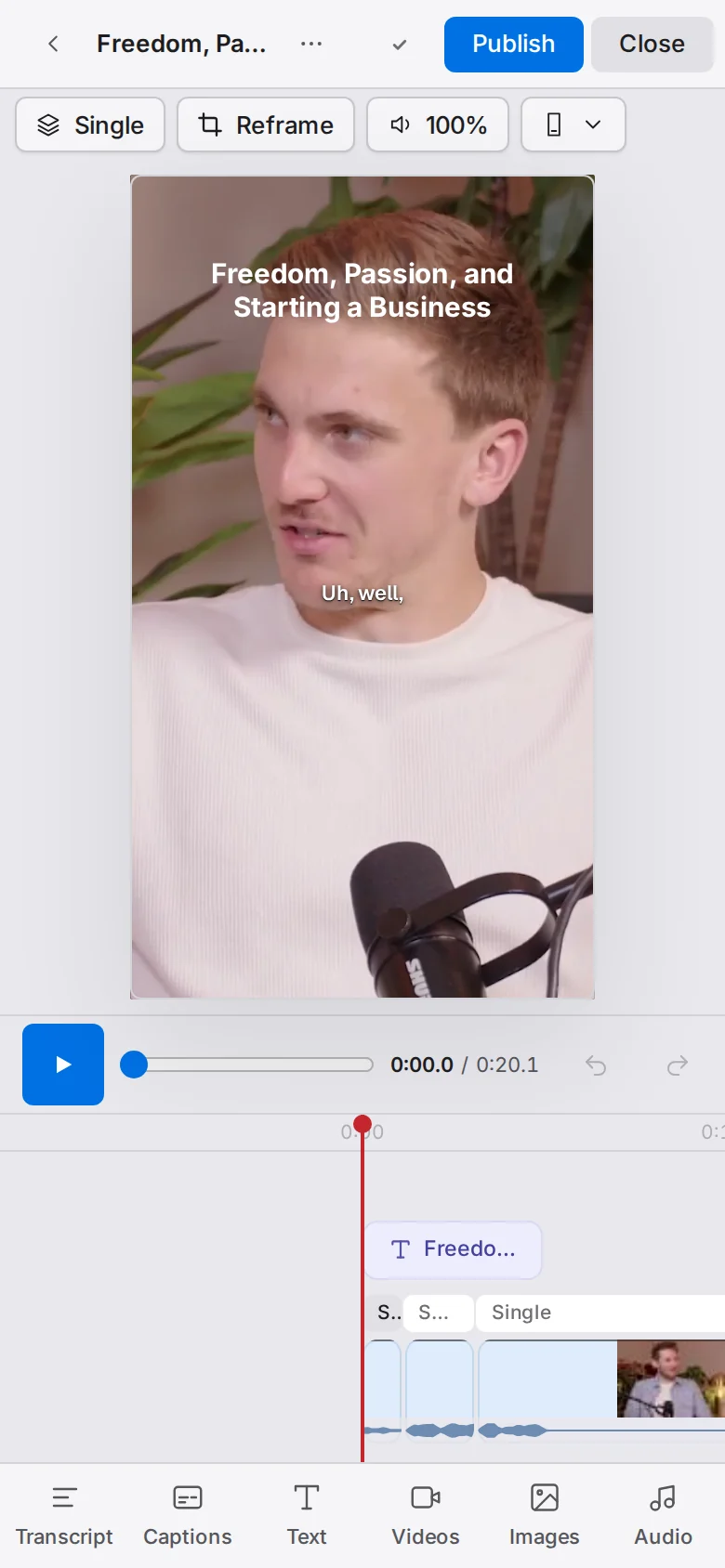
Yes. On a narrow screen the editor is one column: the top bar, the preview, a play bar with Undo and Redo, the timeline, and a tool strip at the bottom that starts with Transcript.
- Tap a tool to open its panel; drag the panel's handle up for full height.
- Swipe the timeline sideways to scrub under the fixed playhead; pinch to zoom.
- Tap an item to select it: the tool strip becomes its actions.
- Press and hold an item on the timeline to drag it.
- Press and hold the preview, or an empty spot on the timeline, for the actions menu.
The phone has no shortcut list, and notifications are in the ⋯ menu.
Related
- How do I fix a wrong word in my captions?Correct a misheard word, cut words or fillers out of the video, change the speed or trim the clip from the Transcript panel in the Auk editor.
- How do I change the caption style on my clips?Pick a caption style before Auk makes your clips, change it for one clip in the editor, or save it in a template for every project.
- How do I fix the crop or framing of a clip?Change a segment's layout, drag the crop onto the right person, put a person, a video or an image in each box, or show the whole frame, all in Reframe.
- How do I export and download a clip?Open the clip and press Download. Auk renders a vertical 1080 by 1920 MP4 with your captions, for free.