


How do I use templates and add an intro or outro to every clip?
A template is a saved look that Auk gives every clip a project makes: the caption style, the title, the background colour, the volume, the motion, and an intro and an outro scene. Create one on the Templates page, then pick it on the Template tab when you make clips.
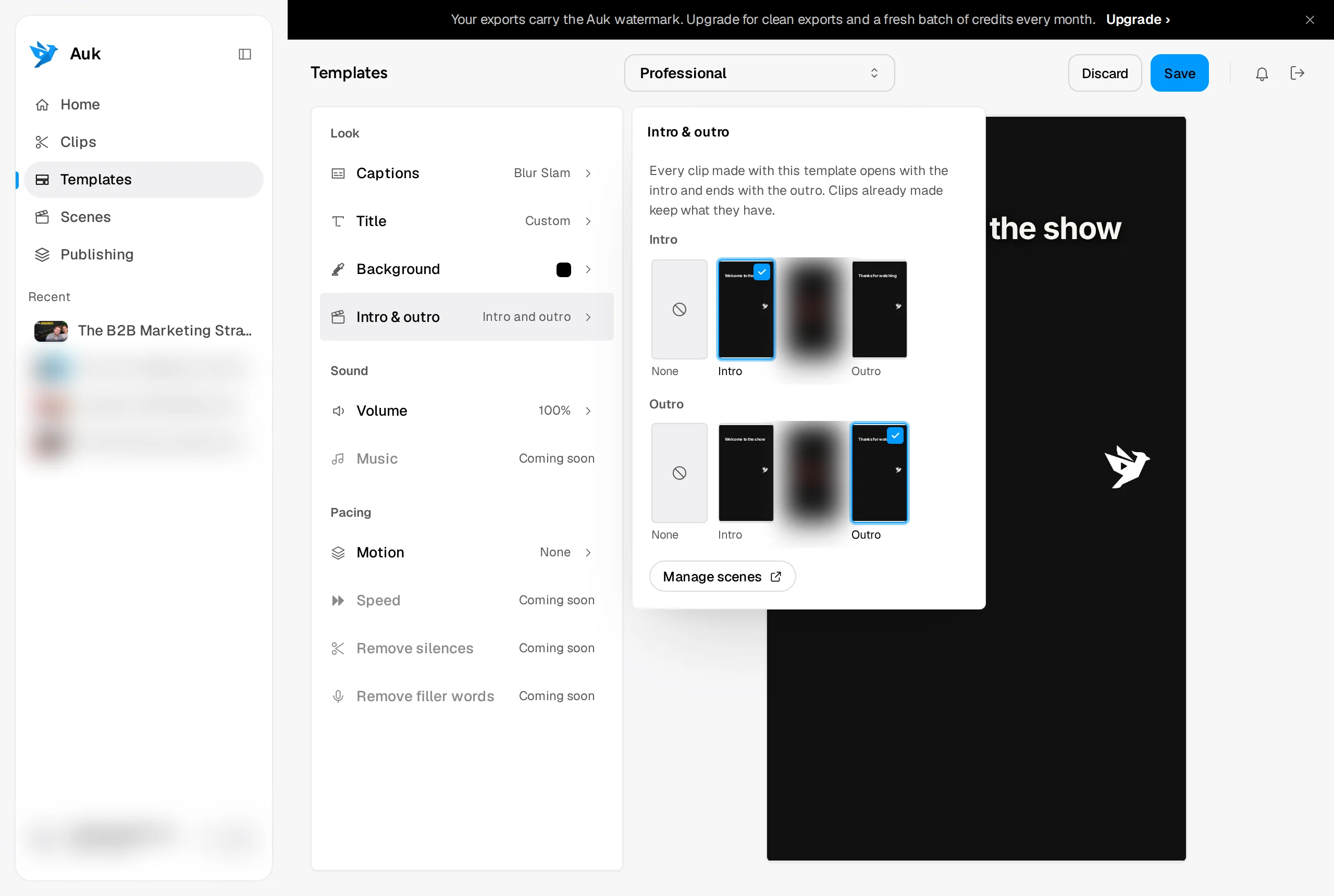
What is a template?
A template is the set of settings listed on the Templates page. The preview on the right plays a sample clip made with the template, intro and outro included; click it to play it with sound.
How do I create a template?
- Click Templates in the sidebar.
- Click the menu at the top of the page, which shows the current template's name.
- Click New template.
- Type a name. A template cannot be created without one.
- Click a setting in the list to open its window, and change it. The preview follows your changes.
- Click Create.
How do I edit, rename, duplicate or delete a template?
Open the menu at the top of the page to see all your templates. Point at a template's card to show its Duplicate and Delete icons.
- Edit: click the template, change its settings, then click Save. Discard throws away the changes you have not saved.
- Rename: click Rename at the top of the menu, type the new name, then click Save.
- Duplicate: click Duplicate. The copy opens as a new template named after the original with "Copy" added. It is not kept until you click Create.
- Delete: click Delete, then confirm.
If you switch to another template with unsaved changes, Auk asks whether to discard them first.
What can a template set?
Click a setting to open its window. Captions and Title have a switch at the top of their window; while one is off, its row says Off and clips made with the template leave it out.
Look
- Captions: the caption style, picked on the Presets tab and fine-tuned on the Font tab, as in the editor. See How do I change the caption style on my clips?
- Title: the look of each clip's title. Presets picks a title style, Font sets its position and typography, and Effects sets its In and Out animations and its Duration in seconds.
- Background: the colour behind the video. Pick it under Color.
- Intro & outro: a scene that plays before every clip and one that plays after it, chosen from your scenes (see below).
Sound
- Volume: the level of the clip's own sound, set with the Level slider from 0% to 100%. At 0% the row says Muted.
- Music is marked Coming soon and is not available yet.
Pacing
-
Motion: a motion style for every clip. You can change any of it in the editor afterwards.
- None: no motion added.
- Calm: the title fades in.
- Lively: a quick zoom on every other cut, and the title scales in.
- Punchy: a quick zoom at every cut, the title slides in, and a shake on the last line.
A motion style also sets the title's In animation, unless you choose one yourself on the Title's Effects tab.
-
Speed, Remove silences and Remove filler words are marked Coming soon and are not available yet.
How do I use a template when making clips?
- Paste a video link or upload a file.
- In the window that opens, click the Template tab.
- Click a template. Default is Auk's own look. A template that adds scenes says Intro, Outro or Intro and outro under its name.
- Click Make clips.
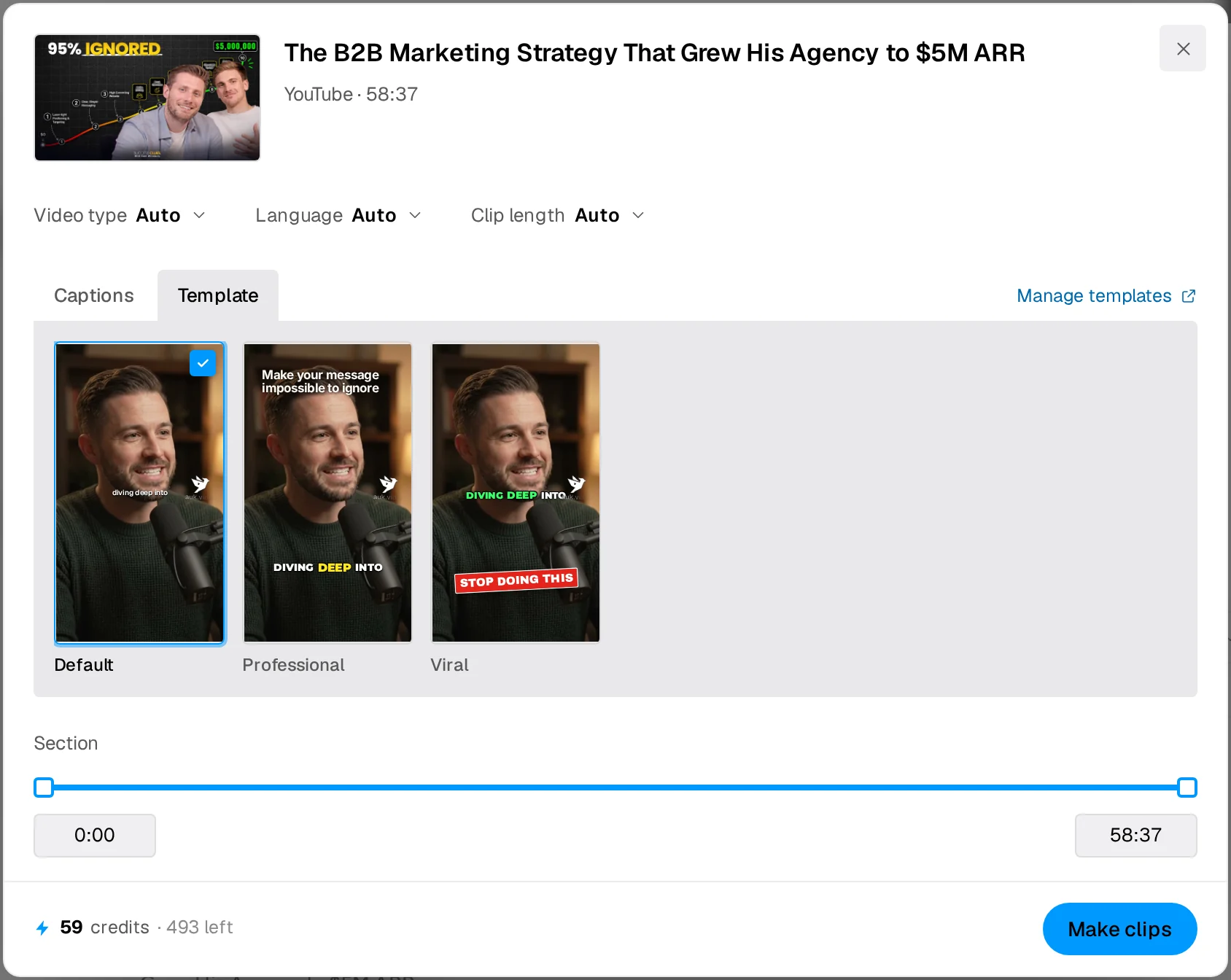
Footage: The B2B Marketing Strategy That Grew His Agency to $5M ARR by Success Clues Podcast, CC BY 4.0, cropped and captioned.
Picking a template also selects its caption style on the Captions tab. Picking another style there changes only the captions and keeps the rest of the template. If the template has captions turned off, the Captions tab says so.
Manage templates (Create a template when you have none) opens the Templates page in a new tab. A template you create there shows up the next time you open the Make clips window.
Can I apply a template to a clip I already made?
Partly. In the editor, click Templates in the tool column and click Apply on a template. The clip takes the template's caption style, title look and motion style. The background, the volume and the intro and outro are not applied this way; add an intro or outro to one clip from Scenes instead (see below). Undo takes the change back.
What is a scene and how do I make one?
A scene is a short card you design once, such as your logo, a line of text or a sound, and add to clips as an intro, an outro or a call to action. A scene lasts 1 to 10 seconds.
- Click Scenes in the sidebar.
- Click New scene. It opens in the editor, 3 seconds long on a plain dark background.
- In Background, drag Length to set how long it lasts, and pick its Colour.
- Add your logo from Images, words from Text and a sound from Audio. Videos and Elements work as they do on a clip.
- To put a picture or a video behind the scene, add it from Images or Videos, select it, go back to Background and click Use the selected image as the background (or video). Use a colour switches back to a colour.
The scene saves on its own; Save saves it at once.
On the Scenes page, click a scene to edit it. Point at it for Rename, Duplicate and Delete.
How do I add an intro or outro to every clip?
- On the Templates page, open the template.
- Under Look, click Intro & outro.
- Under Intro, click a scene, or None for no intro. The preview jumps to the scene and plays it.
- Under Outro, do the same.
- Click Save.
If you have no scenes yet, the window offers Create a scene, which opens a new scene in the editor in a new tab. Back on the Templates page, the new scene is ready to pick. Manage scenes opens the Scenes page in a new tab.
Every clip the template makes then opens with the intro and ends with the outro. The intro plays before the video and the outro starts where the video ends, so each adds its own length to the clip.
To add a scene to one clip only, open the clip in the editor, click Scenes and pick As intro, As outro or At playhead (a call to action over the video) next to the scene. A clip holds one intro and one outro: adding another replaces it. Remove under On this clip takes a scene off.
What happens to clips already made when I edit or delete a template or scene?
They stay as they are.
- Editing or deleting a template changes only the clips made after that. A project that has already started keeps the template as it was when it started.
- Each clip keeps its own copy of its intro and outro, so editing or deleting a scene does not change any clip that already has it. An edited scene is what templates add to clips from then on.
- Deleting a scene that a template uses takes it off that template. The confirmation names those templates.
Related
- How do I change the caption style on my clips?Pick a caption style before Auk makes your clips, change it for one clip in the editor, or save it in a template for every project.
- How do I make my first clips with Auk?Paste a YouTube link or upload a video file, pick a caption style and the part to use, and press Make clips. Which videos work and what it costs.
- How do I use the Auk clip editor?A tour of the Auk editor, from the top bar, transcript, preview, tools, timeline, right-click menu, shortcuts, saving and the phone layout.
- How do I export and download a clip?Open the clip and press Download. Auk renders a vertical 1080 by 1920 MP4 with your captions, for free.