


How do I add text, elements and motion to my clip?
In the editor, click Text in the tool column to add a title, Elements to add a call to action, sticker or shape, and Motion to add a zoom, shake or other camera move to the main video. Each one lands at the playhead, and you set when it shows by dragging it on the timeline.
Titles are separate from captions: to change how your captions look, see Caption styles. For the tool column and the timeline in general, see Editor basics.
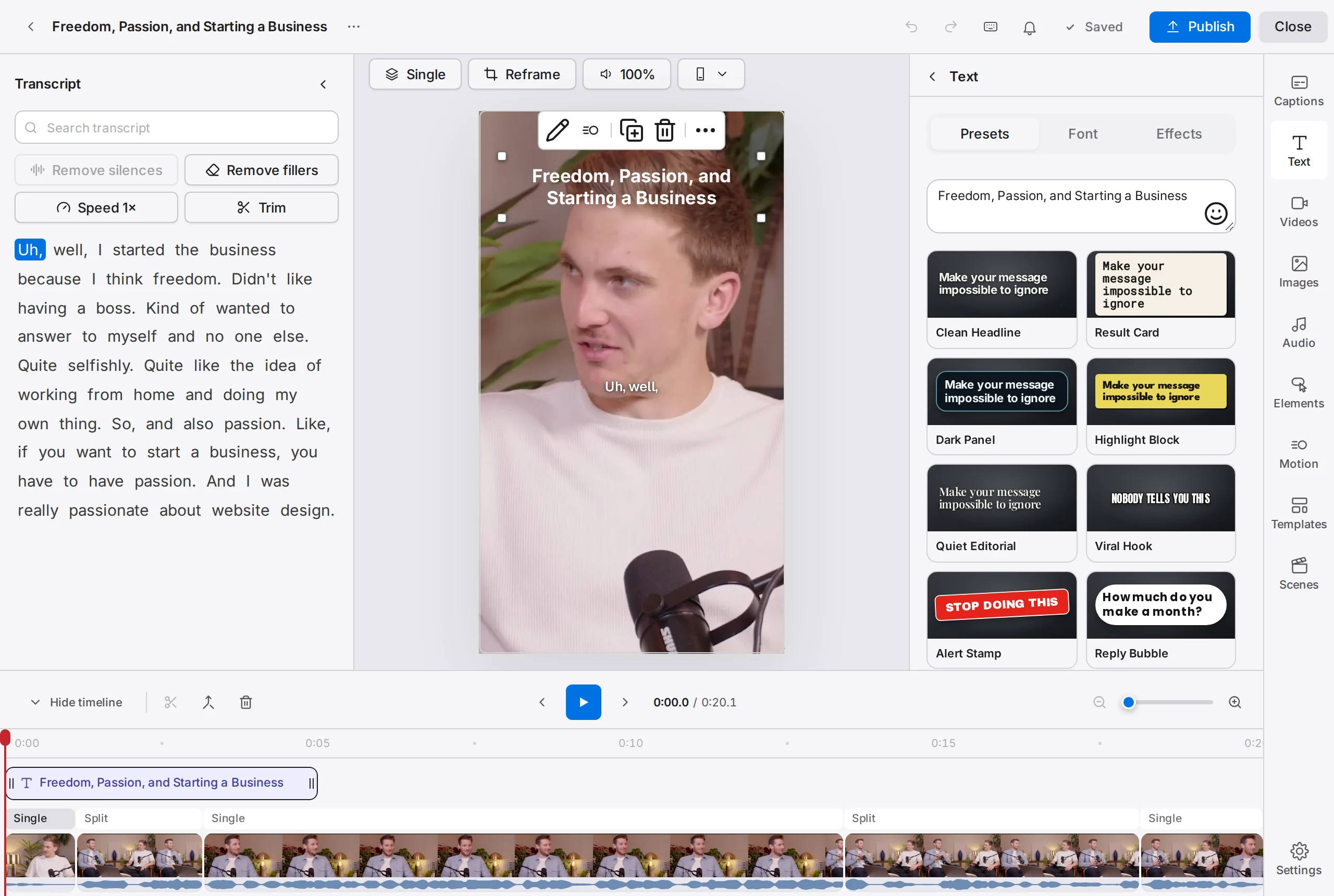
Footage: The B2B Marketing Strategy That Grew His Agency to $5M ARR by Success Clues Podcast, CC BY 4.0, cropped and captioned.
How do I add a title or text?
- Move the playhead to where the title should start.
- Click Text in the tool column.
- Click Add text.
A title that reads "Your text here" appears near the top of the frame, and the panel switches to its settings. You can also right-click an empty part of the timeline and choose Add text here: the playhead moves to that spot and the Text panel opens, ready for Add text.
When nothing is selected, the Text panel lists every title on the clip under Text on this clip, with when it plays. Click a row to jump to that title and select it.
How do I change the words, font, colour, size and position?
Select the title on the timeline or the preview. Its settings open in the Text panel, with the headline box at the top on every tab.
- Words: type in the box under the tabs. It keeps line breaks. The smiley-face button in the corner of the box adds an emoji.
- Look: on the Presets tab, click a card such as Clean Headline, Result Card or Highlight Block. A preset replaces the font, colours and size you set on the Font tab.
- Position: on the Font tab, under Position, click Top, Upper, Middle, Lower or Bottom. To place it anywhere, drag the title on the preview.
- Font and weight: Font and Weight under Typography.
- Size: the Size slider.
- Spacing and alignment: the Letter spacing slider, and the three alignment buttons under Alignment.
- Colour: under Colors, Text for the letters and Highlight for the box behind them.
On the preview, clicking a title shows a small bar of icons above it: the pencil takes you to the headline box, the next icon to the animation settings, then duplicate, the bin, and the three-dot button for the rest. Right-clicking a title also offers Edit text, Font and Style.
To give every clip of a project the same title look, save it in a template: see Templates and intros.
How do I animate text in and out?
- Select the title.
- In the Text panel, open the Effects tab.
- Click In, then click how the title arrives, such as Fade, Slide up, Scale or Bounce. Click More for every other animation.
- Click Out, then click how it leaves.
The preview plays your pick once on the clip. None removes an animation. The In and Out cards have no length setting.
On screen adds a movement that plays the whole time the title shows: Zoom in, Zoom out, Pulse, Shake or Float. After you pick one, click Adjust to set its Strength to Subtle, Normal or Strong.
Right-click a title and choose Animate… to jump straight to these settings.
What are elements and how do I add one?
Elements are animated graphics you place over the clip, in three tabs:
- Calls to action: buttons and prompts such as Subscribe, Follow, Like and subscribe and Comment, plus pointers like Arrow and Circle highlight and hooks like Wait for it.
- Stickers: reactions such as Boom Effect, and emoji.
- Shapes: Circle, Square, Star and other shapes.
To add one:
- Move the playhead to where it should appear.
- Click Elements in the tool column.
- Pick a tab, or type in Search elements to look across all three.
- Click the element. Point at a card first to see it play.
The element appears at the playhead, selected. Drag it on the preview to place it.
Once an element is selected, the panel shows its settings. Some calls to action have Label for their words and Accent for their colour. A shape has Color, Border color and Stroke width, and a square also has Border radius. Animation holds the same In, On screen and Out choices as a title.
How do I turn an element's sound off?
Many calls to action play a click, a pop or a whoosh as they animate.
- Before you add it: in the Elements panel, turn off the Add with sound switch. Elements you add after that come without their sound; elements already on the clip keep theirs.
- After you add it: select the element. Next to Sound and the sound's name, turn off the switch. While the sound is on, Volume sets how loud it is, with Mute beside it.
You can also right-click an element with a sound and choose Mute, or press M.
How do I add a zoom, shake or other motion?
Motion moves the whole main video, not a single item.
- Move the playhead to where the motion should start.
- Click Motion in the tool column.
- Click a motion: Zoom in, Deep zoom in, Zoom out, Deep zoom out, Quick zoom, Shake, Pulse, Fade in, Fade out or Flash.
The preview plays it once, and a chip with its name appears on a row of its own on the timeline, above the main video. Right-click an empty part of the timeline and choose Add motion here to open the panel at that spot.
Only one motion plays at a time. If the playhead is already on a motion, the new one starts where that one ends. Each click adds a new motion; it does not change the one you selected.
How strong: for a zoom, pick Deep zoom in or Deep zoom out for a stronger move. The other motions on the main video have no strength setting.
How long: a new zoom lasts up to 2 seconds and a shake up to half a second, less when another motion or the end of the clip is close. Drag either end of its chip on the timeline to make it longer or shorter, or drag the chip to move it.
How do I make something show for only part of the clip?
Every title, element and motion has its own bar on the timeline. Drag the bar to change when it starts, and drag its start or end edge to change how long it shows. A motion stops at the motion next to it. See Editor basics for selecting and moving items.
How do I remove a title, element or motion?
Select it on the timeline, then press Delete, click the bin button on the timeline, or right-click it and choose Delete. For a title or element, the bin button in the small bar above it on the preview works too.
Undo brings it back.
Changes reach the video file the next time you download it: see Exporting a clip.
Related
- How do I use the Auk clip editor?A tour of the Auk editor, from the top bar, transcript, preview, tools, timeline, right-click menu, shortcuts, saving and the phone layout.
- How do I change the caption style on my clips?Pick a caption style before Auk makes your clips, change it for one clip in the editor, or save it in a template for every project.
- How do I use templates and add an intro or outro to every clip?A template saves captions, title, background, volume, motion and an intro and outro scene, and applies them to every clip Make clips makes.
- How do I export and download a clip?Open the clip and press Download. Auk renders a vertical 1080 by 1920 MP4 with your captions, for free.